PaintBridge Krita
A downloadable tool
Capture your scene.
Paint in Krita.
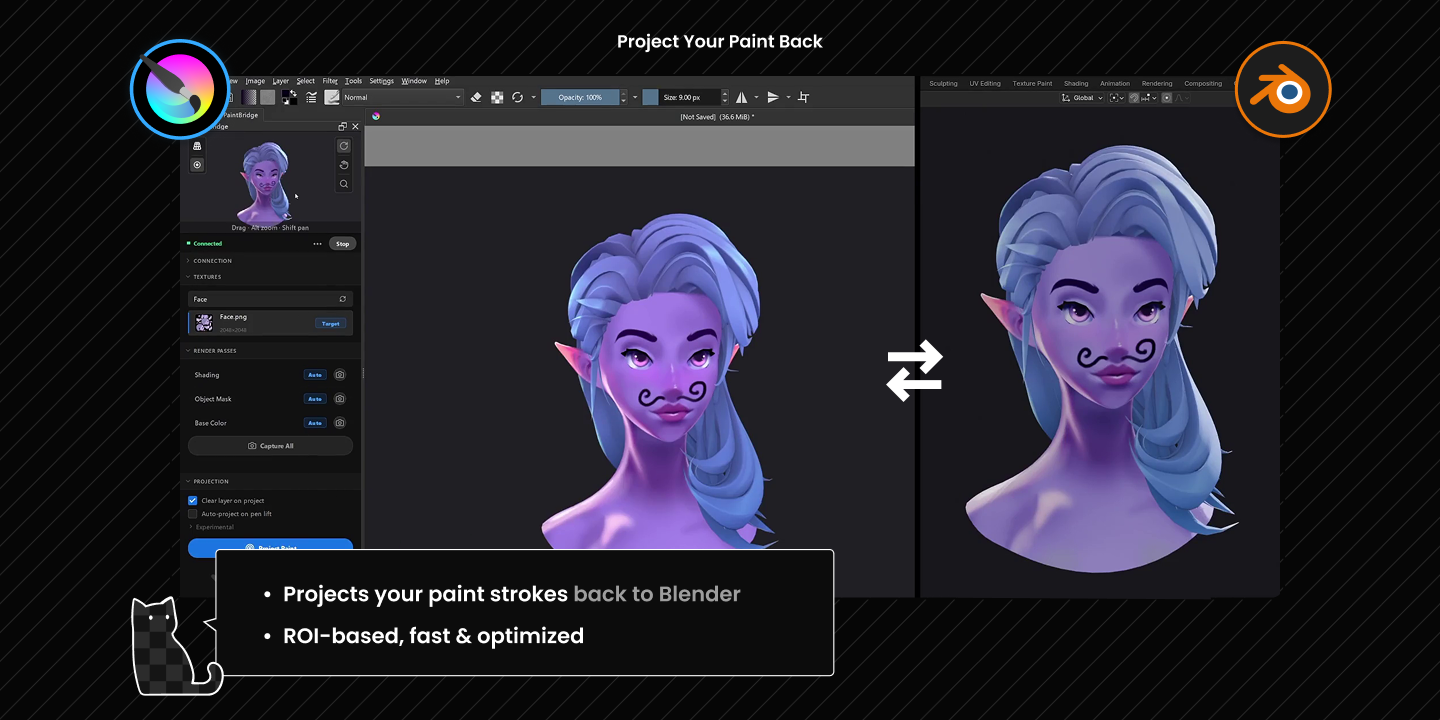
Project it back.
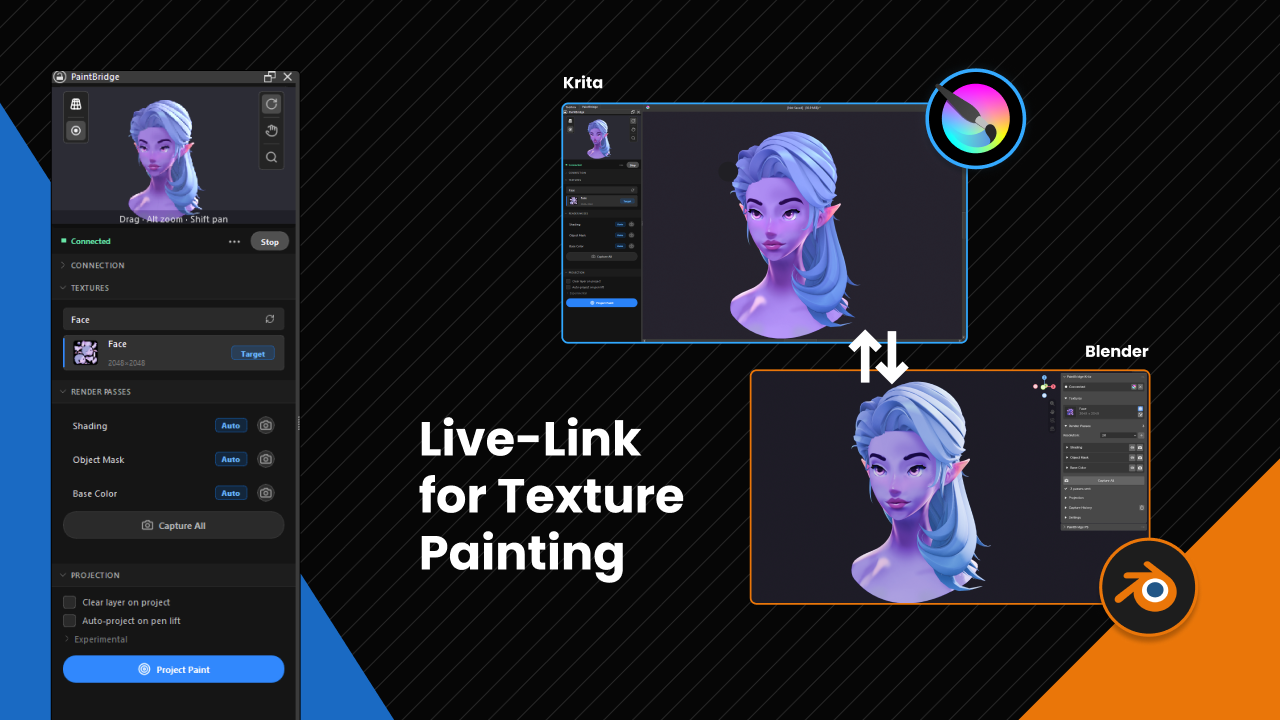
PaintBridge is now available for Krita! PaintBridge Krita is a live link between Blender and Krita. Designed for artists who want the power of Krita’s brush engine inside their 3D Blender workflow. Documentation
Features
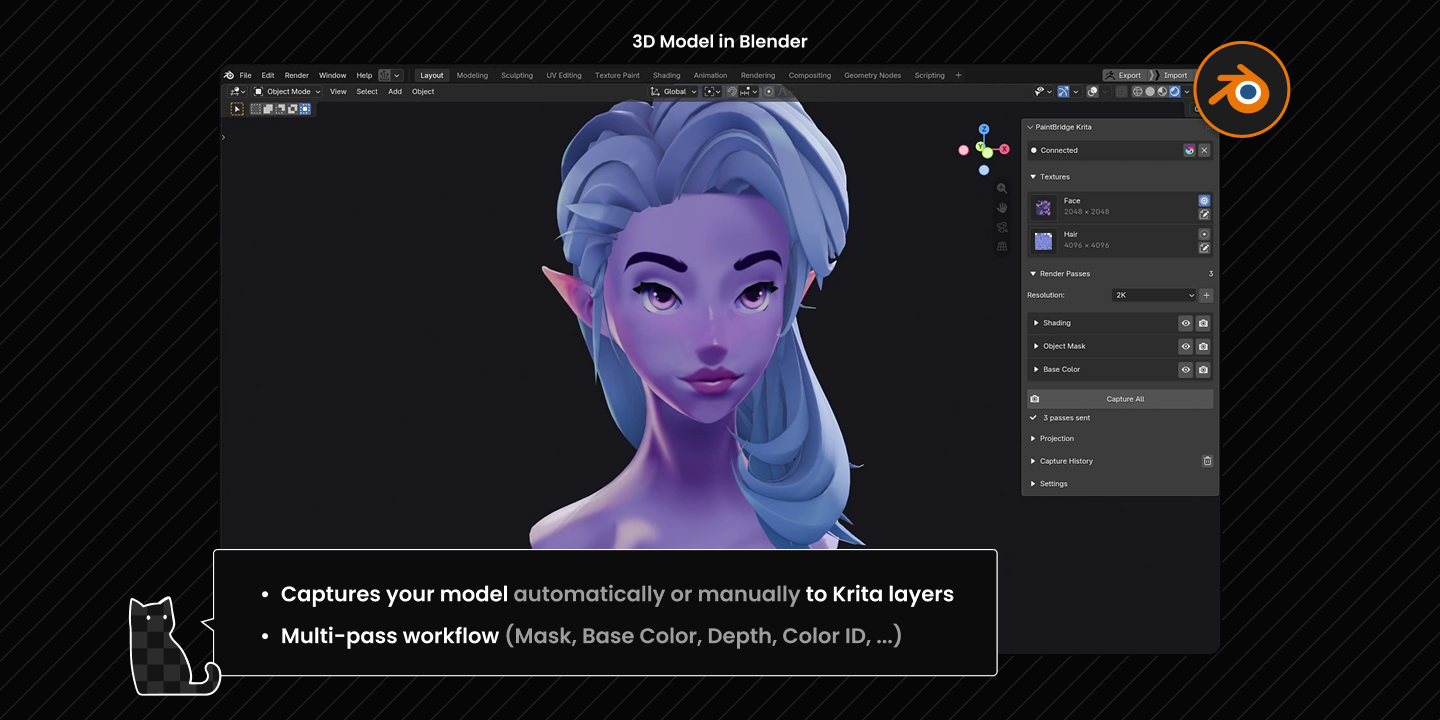
- Auto-Capture: Captures automatically or manually to Krita layers
- Automatic Paint Projection: Sends paint back to Blender; ROI-based & optimized
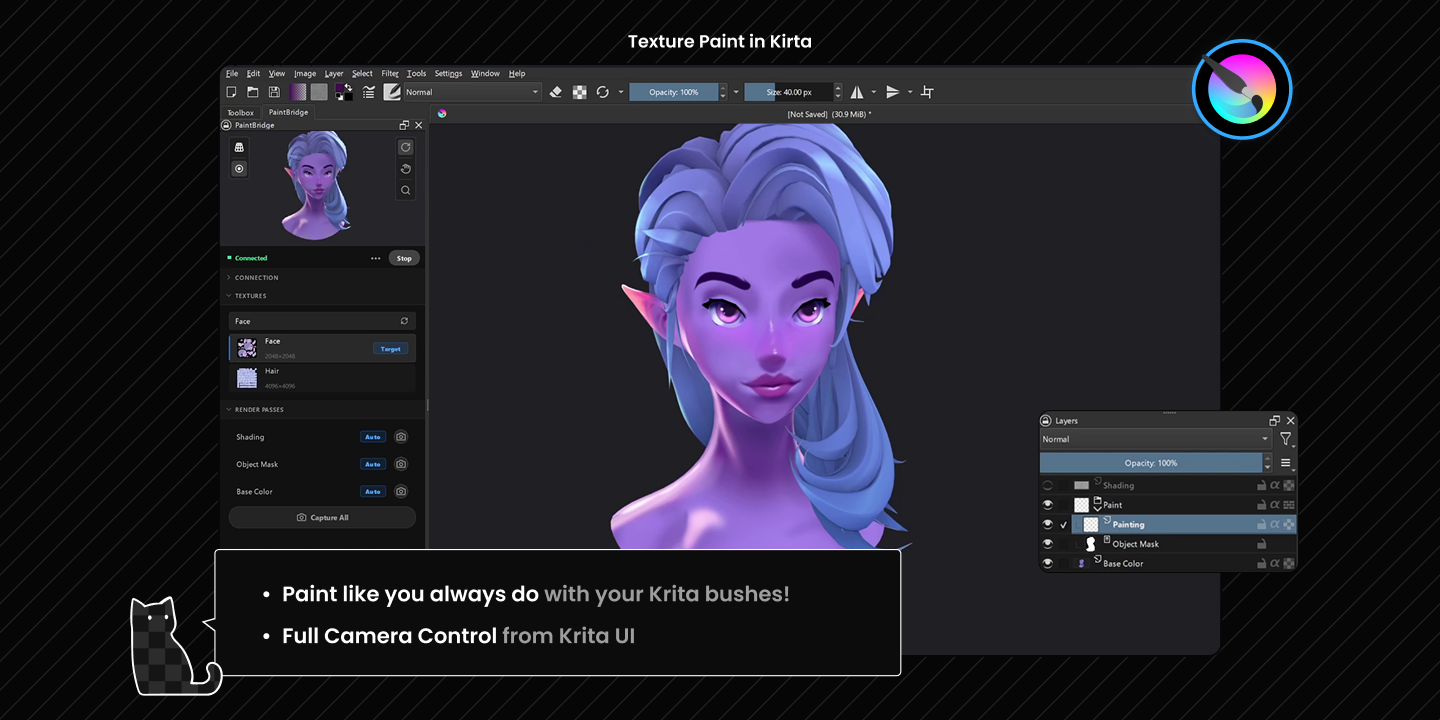
- Full Camera Control from Krita: Orbit, pan, zoom and snap to axis directly from Krita
- Multi-Pass Capture: Viewport, Base Color, Normals, Depth, Ambient Occlusion, Shading, Color ID, Vertex Color, Object Mask, Wireframe
- Capture History: Snapshots viewport state per capture, up to 30 entries
- Texture Slot Browser: Browse all material texture slots, set paint target and projection mask
- Color Management: sRGB <-> Linear conversion on both capture and projection
- Pass Preview: Toggle any pass directly in the Blender viewport before capturing
- Configurable Capture Resolution: 512px up to 8K, or match viewport
- Direct WebSocket Transfer: ROI-based pixel transfer, memory-to-memory, no temp files
- Works great with layer addons like Ucupaint.
Texture Paint in Krita
Multi-Pass Capture
Ten passes, one click: Viewport, Base Color, Normals, Depth, Ambient Occlusion, Shading, Color ID, Vertex Color, Object Mask, Wireframe. All sent to Krita as separate layers.
2D UV Edit
You can also edit a texture the classic way, on its flat UV layout. PaintBridge makes that more convenient: Open from panel, Ctrl + S in Krita, Blender picks it up automatically.
Vs. Blender Quick Edit
This is basically an improved version of Blender's built in Quick Edit Workflow + Toolkit for an easier workflow.
PaintBridge replaces file handoff and tempfiles with direct WebSocket connection and ROI based transfer, but still uses a lot of the same operators.
Limitations
- Local only: Krita and Blender must run on the same machine. WebSocket connection does not work over a network.
Requirements
Quick Start
Once installed, this is the basic workflow: Prerequisites: Your mesh needs a material with an Image Texture node. That's what PaintBridge paints into and what populates the Textures section.
- Start the server in Blender: select your mesh → click Connect
- Connect from Krita: In the PaintBridge Krita panel, click Connect
- Check the Textures section to confirm your material is set up correctly
- if you see your selected objects textures appear here, everything is working as intended.
- if it says "No image textures found" your material is missing an Image Texture node, just add an Image Texture node connected to Base Color in your material and the slot will appear there.
- Capture passes: Click the Capture All button at the bottom of the list, or the camera icon next to any pass (Base Color, Object Mask, etc.) the layer appears in your active Krita document
- Paint: Paint on any layer you want in Krita
- Project back: click Project Paint in the panel. Your active layer is projected onto the mesh in Blender
Complete Documentation
Support & Feedback
Purchase
In order to download this tool you must purchase it at or above the minimum price of $9.59 USD. You will get access to the following files: